How to Add Google Reviews to Squarespace
Squarespace makes it easy to build a polished website, but it does not include a built-in way to display live Google reviews that update automatically. If you want valuable, user generated social proof, such as star ratings and customer feedback from your Google Business Profile on your Squarespace site, you need an embed solution that pulls public review data and keeps it current.
SocialMatix lets you search for your business venue, import its public Google reviews, customize how they appear, and embed them on any Squarespace page with a Code block. This guide walks through the full process—from adding your venue in SocialMatix to pasting the embed on your site.
Why embed Google reviews on Squarespace?
Build trust on your high-intent pages like your homepage, services page, and contact form.
Show real customer feedback without manually copying reviews into Squarespace.
Keep social proof visible even when visitors never click through to your Google Business Profile.
Moderate which reviews appear on your site before they go public.
What you will need
The name and location of the business or venue whose Google reviews you want to display.
A Squarespace site with permission to edit pages.
A Squarespace plan that supports Code blocks (typically Business plan or higher).
A free SocialMatix account.
Good to know: Google Reviews in SocialMatix uses public venue data. You do not need to connect a Google account or log in with Google to add a venue as a source. Google Reviews is available on the free plan.
Step 1: Create your feed and add Google Reviews
-
Sign up for free. Create your account at SocialMatix and add a new feed for your Squarespace site.
-
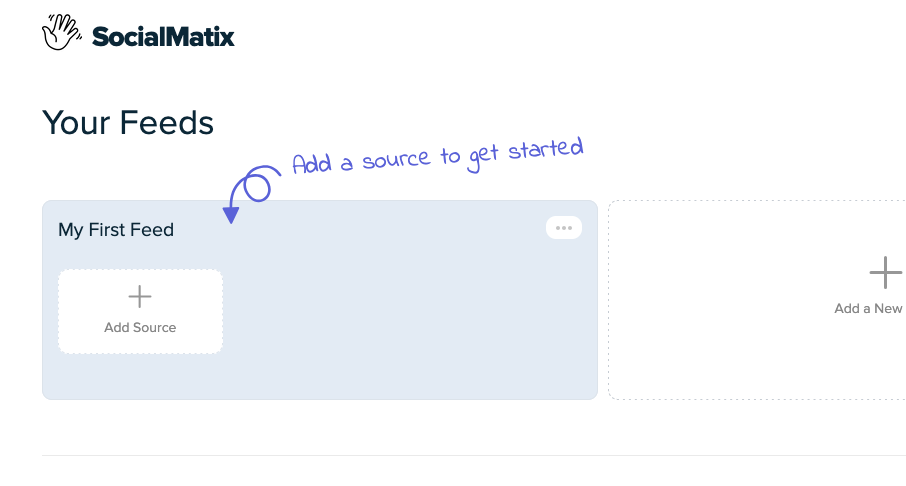
Add a Google Reviews source. Click Add Source, then choose Reviews from the source picker.

-
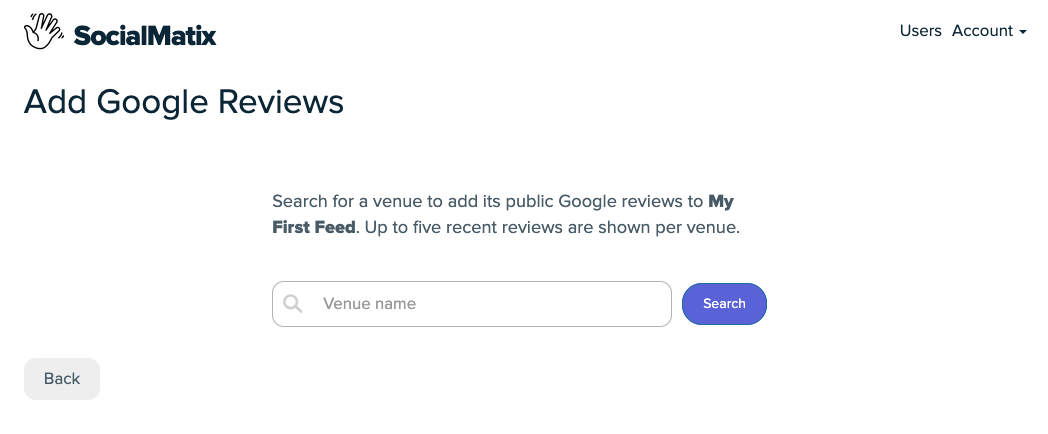
Search for your venue. Enter the business name (for example your restaurant, salon, or clinic name) and click Search. Pick the correct result from the list—check the address carefully if there are multiple locations.
-
Confirm the venue. Click Use this venue to add it to your feed. SocialMatix imports up to five recent public reviews for that location.
-
Customize your layout. Adjust colors, spacing, and display style so the review feed matches your Squarespace design.

-
Set moderation rules. Decide which reviews are approved automatically and which require manual review before they appear on your site.
Step 2: Copy your embed code
Open your feed in SocialMatix and click Publish (top right).
Copy the full embed snippet shown in the modal. It includes a container div and a script tag.
Keep this code ready—you will paste it into Squarespace in the next step.
Your embed snippet will look similar to this:
<div id="social-wall"></div>
<script src="https://..." async data-feed="YOUR_FEED_KEY" data-api-base="https://..."></script>

Step 3: Add a Code block in Squarespace
Log in to Squarespace and open the page where you want your Google reviews to appear.
Click Edit to open the page editor.
Click the + icon to add a new block.
Search for Code and select the Code block.
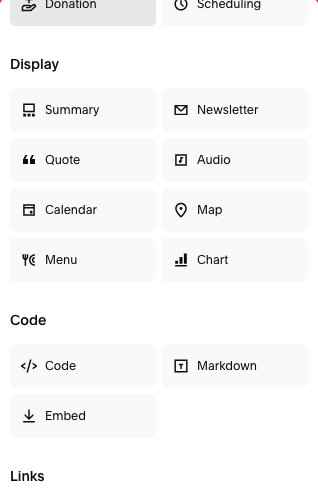
Position the block where you want the reviews to display on the page.
Step 4: Paste your SocialMatix embed snippet
Click into the Code block settings panel.
Paste the full SocialMatix embed snippet into the code field.
Make sure you paste both the
<div id="social-wall"></div>container and the<script>tag.Click Apply or close the block settings to save the code.
Step 5: Preview and publish
Click Save in the Squarespace editor.
Preview the page on desktop and mobile to confirm your Google reviews load correctly.
If everything looks good, publish your site changes.
Return to SocialMatix anytime to update layout, moderation, or sources—your Squarespace embed will reflect those changes without re-pasting code.
What visitors will see
When your embed is live on Squarespace, each Google review typically displays:
The reviewer's name and profile photo (when available)
A star rating
The review text
Google attribution, including Powered by Google branding where required
Reviews refresh on your feed's normal update schedule, so your Squarespace site stays current without manual copy-and-paste.
Where to place Google reviews on Squarespace
Homepage: establish credibility immediately for first-time visitors.
Services or pricing pages: reinforce trust near booking and contact actions.
Location pages: show reviews for each venue if you operate in multiple cities.
Landing pages: support paid campaigns with real customer feedback.
About page: complement your brand story with third-party validation.
Tips for a clean Squarespace integration
Search by the exact business name and verify the address before adding a venue—especially for common brand names.
Use a full-width section so the review feed has enough space on desktop.
Match SocialMatix colors to your Squarespace theme for a native look.
Test on mobile—most local search and review traffic is mobile-first.
Review your feed after launch and hide any reviews that no longer fit your messaging.
Related guides
Frequently asked questions
Do I need a Google Business Profile to display reviews on Squarespace?
You do not need to connect or log in to a Google account in SocialMatix. The platform pulls public review data for venues listed on Google. Your business should still maintain an active Google Business Profile so customers can leave new reviews over time.
Do I need a paid Squarespace plan?
Yes. Code blocks that accept custom HTML and script tags are typically available on Squarespace Business plan or higher. If the Code block is unavailable in your editor, check your plan tier before continuing.
Is Google Reviews available on the SocialMatix free plan?
Yes. Google Reviews is available on all SocialMatix plans, including the free tier. The free plan includes 3 sources, up to 1,000 posts, daily content refresh, and 2,000 views per month.
How many Google reviews can I show per venue?
SocialMatix imports up to five recent public reviews per venue source. If you need reviews from multiple locations, add each venue as a separate source within your feed (subject to your plan's source limits).
Can I add reviews from more than one location?
Yes, within your plan's source limits. Add each venue as a separate source in the same feed, or create separate feeds for different Squarespace pages if you want distinct embeds per location or brand.
Can I mix Google reviews with Instagram or Facebook in one feed?
Yes. SocialMatix feeds can include multiple source types in a single embed. This is useful when you want star ratings alongside social posts on the same Squarespace page.
How often do reviews update?
Reviews refresh according to your feed's plan schedule—daily on the free plan, hourly on Growth ($24/month), and every 15 minutes on Business ($50/month). You do not need to re-paste the embed code when new reviews are imported.
Can I hide or moderate specific reviews?
Yes. Use SocialMatix moderation controls to approve, reject, or hide individual reviews before or after they appear in your feed. This gives you editorial control over what shows on your Squarespace site.
Do I need to show Google branding?
Yes. When displaying Google review content outside of Google Maps, attribution requirements apply. SocialMatix handles the required Powered by Google branding and reviewer attribution in the embed.
What if I cannot find my business in the venue search?
Try alternate spellings, include the city or neighborhood in your search, and confirm the business has a public listing on Google. If the venue was recently added to Google, it may take time before it appears in search results.
The reviews do not appear after publishing—what should I check?
Confirm you pasted the complete embed snippet, including both the div and script tag.
Check that your Squarespace plan supports Code blocks.
Make sure your feed is published in SocialMatix and has approved reviews.
Preview the live site, not just the editor—some embeds behave differently in edit mode.
Can I add different review feeds to different Squarespace pages?
Yes. Create separate feeds in SocialMatix for each use case (for example homepage vs location page), then paste each feed's embed snippet into the relevant Squarespace Code block.
Final takeaway
Adding Google reviews to Squarespace is straightforward with SocialMatix: search for your venue, customize the layout, copy one embed snippet, and paste it into a Code block. Your Squarespace site stays current with moderated review content that updates automatically.
Ready to embed Google reviews on Squarespace? Sign up for free with SocialMatix and add your first Google Reviews source today.