
How to Add a Social Media Feed to Squarespace
Squarespace makes it easy to build polished websites, but it does not include a built-in way to display a live social media feed from Instagram, YouTube, TikTok, and other channels in one place. SocialMatix solves this by giving you a single embeddable feed you can add to any Squarespace page with a Code block.
This guide walks through the full process: build your feed in SocialMatix, copy the embed snippet, and paste it into Squarespace. No custom development required.
What you will need
A Squarespace site with permission to edit pages.
A Squarespace plan that supports Code blocks (typically Business plan or higher).
A free SocialMatix account.
At least one connected social source (for example Instagram, YouTube, or TikTok).
Step 1: Create your feed in SocialMatix
-
Sign up for free. Create your account at SocialMatix and add a new feed for your Squarespace site.
-
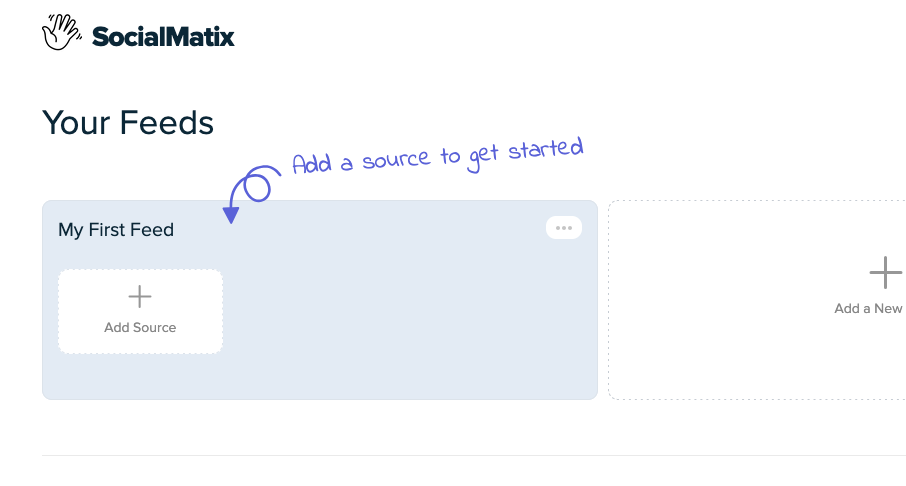
Add your social sources. Click "Add Source" and connect the accounts or hashtags you want to display.

-
Customize your layout. Adjust colors, spacing, and display style so the feed matches your Squarespace design.

-
Set moderation rules. Decide which posts are approved automatically and which require manual review before they appear on your site.
Step 2: Copy your embed code
Open your feed in SocialMatix and click Publish (top right).
Copy the full embed snippet shown in the modal. It includes a container div and a script tag.
Keep this code ready—you will paste it into Squarespace in the next step.
Your embed snippet will look similar to this:
<div id="social-wall"></div>
<script src="https://..." async data-feed="YOUR_FEED_KEY" data-api-base="https://..."></script>

Step 3: Add a Code block in Squarespace
Log in to Squarespace and open the page where you want your social feed to appear.
Click Edit to open the page editor.
Click the + icon to add a new block.
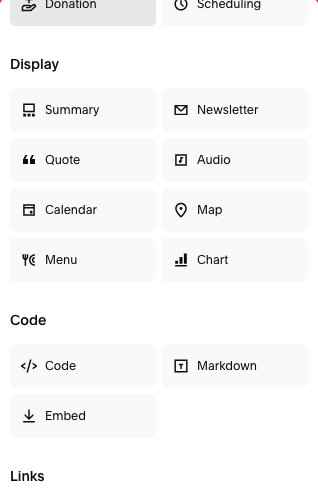
Search for Code and select the Code block.
Position the block where you want the feed to display on the page.
Step 4: Paste your SocialMatix embed snippet
Click into the Code block settings panel.
Paste the full SocialMatix embed snippet into the code field.
Make sure you paste both the
<div id="social-wall"></div>container and the<script>tag.Click Apply or close the block settings to save the code.
Step 5: Preview and publish
Click Save in the Squarespace editor.
Preview the page on desktop and mobile to confirm the feed loads correctly.
If everything looks good, publish your site changes.
Return to SocialMatix anytime to update layout, moderation, or sources—your Squarespace embed will reflect those changes without re-pasting code.
Where to place your social feed on Squarespace
Homepage: showcase recent brand activity above the fold or near your main CTA.
About page: highlight community content and social proof.
Services or product pages: display customer posts near decision points.
Campaign landing pages: surface hashtag content from live promotions.
Event pages: show attendee posts and real-time social activity.
Tips for a clean Squarespace integration
Use a full-width section so the feed has enough space on desktop.
Place the Code block in its own section with consistent padding above and below.
Match SocialMatix colors to your Squarespace theme for a native look.
Test on mobile—most social traffic is mobile-first.
Moderate content before launch so only on-brand posts appear publicly.
Troubleshooting
The feed does not appear after publishing
Confirm you pasted the complete embed snippet, including both the div and script tag.
Check that your Squarespace plan supports Code blocks.
Make sure your feed is published in SocialMatix and has approved posts.
Preview the live site, not just the editor—some embeds behave differently in edit mode.
The feed looks too narrow or misaligned
Move the Code block to a full-width section in Squarespace.
Adjust layout settings in SocialMatix and republish the feed.
Remove extra padding from the surrounding Squarespace section if needed.
Can I add multiple feeds to different Squarespace pages?
Yes. Create separate feeds in SocialMatix for each use case (for example homepage vs event page), then paste each feed's embed snippet into the relevant Squarespace Code block.
Final takeaway
Adding a social media feed to Squarespace is straightforward with SocialMatix: build your feed, copy one embed snippet, and paste it into a Code block. From there, your Squarespace site stays fresh with moderated social content that updates automatically.
Ready to add your feed? Sign up for free with SocialMatix and embed your first social wall on Squarespace in minutes.