
How to Add a Facebook Feed to Squarespace
Squarespace gives you polished templates and easy page editing, but it does not include a built-in way to display a live Facebook Page feed that updates automatically. If you want your latest posts, photos, and updates from Facebook on your Squarespace site, you need an embed solution that pulls content in and keeps it current.
SocialMatix lets you connect a Facebook Page, customize how posts appear, and embed the feed on any Squarespace page with a Code block. This guide walks through the full process—from connecting your Page in SocialMatix to pasting the embed on your site.
Why embed a Facebook feed on Squarespace?
Keep your website fresh with your latest Facebook Page posts without manual CMS updates.
Show social proof and community activity to visitors who may never visit Facebook directly.
Support campaigns, events, and launches with live content on dedicated Squarespace landing pages.
Moderate what appears on your site before it goes public.
What you will need
A Facebook Page for your business, brand, or organization (personal profile feeds are not supported).
Admin access to that Facebook Page so you can authorize SocialMatix during setup.
A Squarespace site with permission to edit pages.
A Squarespace plan that supports Code blocks (typically Business plan or higher).
A free SocialMatix account.
Note: Facebook Page connection may require your Page to be managed through Facebook Business Manager. If no eligible businesses appear during setup, check your Page permissions in Meta Business Suite before trying again.
Step 1: Create your feed and connect Facebook
-
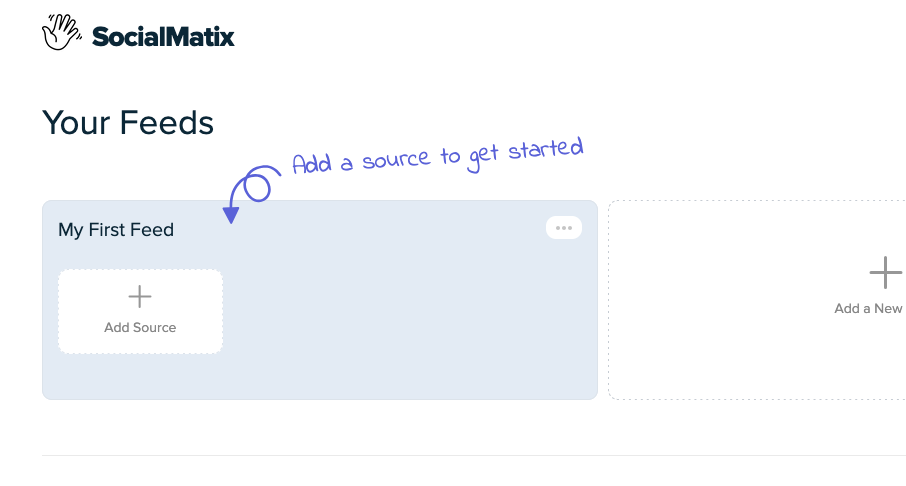
Sign up for free. Create your account at SocialMatix and add a new feed for your Squarespace site.
-
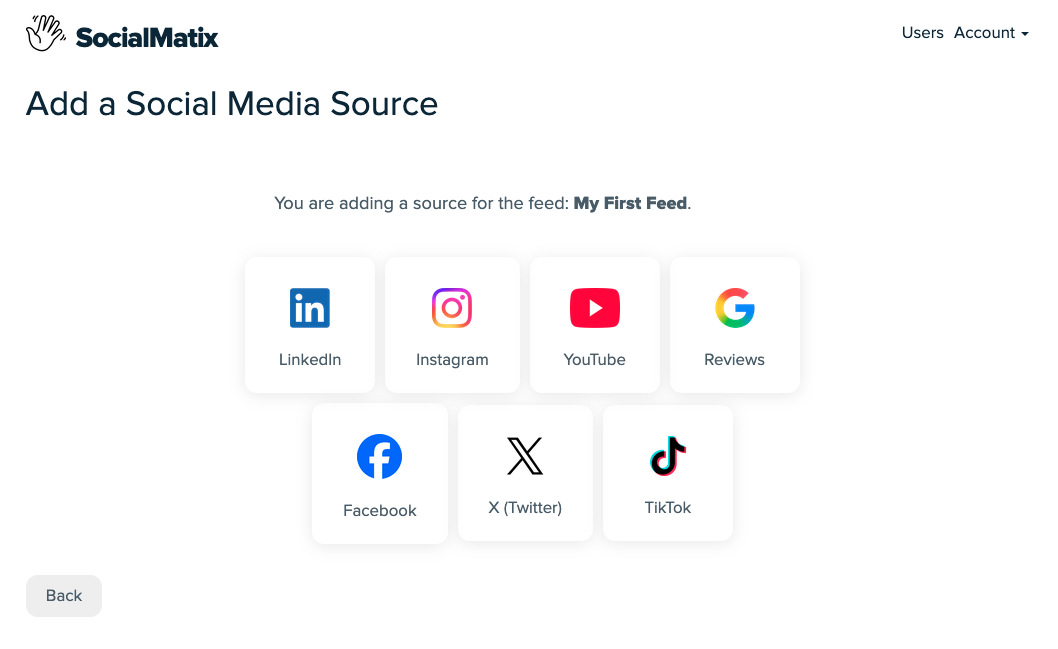
Add a Facebook source. Click Add Source, then choose Facebook from the source picker.
-
Connect your Facebook account. Log in with Facebook when prompted and grant the permissions needed to access your Pages.
-
Select your Page. Choose the Facebook business account, then pick the Page you want to display on your Squarespace site. Click Use this page to add it as a source.
-
Customize your layout. Adjust colors, spacing, and display style so the feed matches your Squarespace design.

-
Set moderation rules. Decide which posts are approved automatically and which require manual review before they appear on your site.
Step 2: Copy your embed code
Open your feed in SocialMatix and click Publish (top right).
Copy the full embed snippet shown in the modal. It includes a container div and a script tag.
Keep this code ready—you will paste it into Squarespace in the next step.
Your embed snippet will look similar to this:
<div id="social-wall"></div>
<script src="https://..." async data-feed="YOUR_FEED_KEY" data-api-base="https://..."></script>

Step 3: Add a Code block in Squarespace
Log in to Squarespace and open the page where you want your Facebook feed to appear.
Click Edit to open the page editor.
Click the + icon to add a new block.
Search for Code and select the Code block.
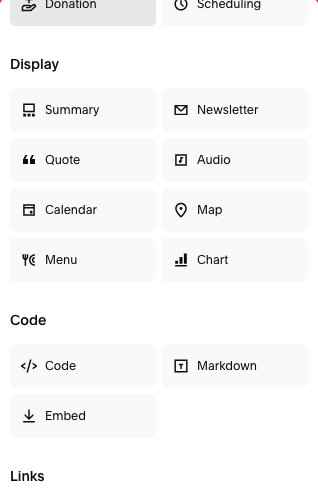
Position the block where you want the feed to display on the page.
Step 4: Paste your SocialMatix embed snippet
Click into the Code block settings panel.
Paste the full SocialMatix embed snippet into the code field.
Make sure you paste both the
<div id="social-wall"></div>container and the<script>tag.Click Apply or close the block settings to save the code.
Step 5: Preview and publish
Click Save in the Squarespace editor.
Preview the page on desktop and mobile to confirm your Facebook posts load correctly.
If everything looks good, publish your site changes.
Return to SocialMatix anytime to update layout, moderation, or sources—your Squarespace embed will reflect those changes without re-pasting code.
Where to place your Facebook feed on Squarespace
Homepage: showcase recent Page activity near your main call to action.
About page: highlight community updates and behind-the-scenes posts.
Services or product pages: add social proof near decision points.
Campaign landing pages: surface live Facebook content during promotions.
Event pages: display announcements and updates from your Facebook Page.
Tips for a clean Squarespace integration
Use a full-width section so the feed has enough space on desktop.
Place the Code block in its own section with consistent padding above and below.
Match SocialMatix colors to your Squarespace theme for a native look.
Test on mobile—much of your Facebook audience browses on phones.
Moderate posts before launch so only on-brand content appears publicly.
Frequently asked questions
Can I embed a personal Facebook profile on Squarespace?
No. SocialMatix connects to Facebook Pages, not personal profiles. You need a Facebook Page for your business, brand, or organization to use this integration.
Do I need a paid Squarespace plan?
Yes. Code blocks that accept custom HTML and script tags are typically available on Squarespace Business plan or higher. If the Code block is unavailable in your editor, check your plan tier before continuing.
Is Facebook available on the SocialMatix free plan?
Yes. Facebook Page sources are available on all SocialMatix plans, including the free tier. The free plan includes 3 sources, up to 1,000 posts, daily content refresh, and 2,000 views per month.
What types of Facebook posts will appear in the feed?
Your embed displays posts from the connected Facebook Page, including text updates and posts with images. Content is pulled from your Page's public feed and formatted to match your SocialMatix layout settings.
Can I connect more than one Facebook Page?
Yes, within your plan's source limits. Add each Page as a separate source in the same feed, or create separate feeds for different Squarespace pages if you want distinct embeds per location or brand.
Can I mix Facebook with Instagram or YouTube in one feed?
Yes. SocialMatix feeds can include multiple source types in a single embed. This is useful when you want one social wall on Squarespace that combines Facebook posts with content from other channels.
How often does the Facebook feed update?
Updates follow your SocialMatix plan schedule—daily on the free plan, hourly on Growth ($24/month), and every 15 minutes on Business ($50/month). You do not need to re-paste the embed code when new posts are imported.
Can visitors like or comment on posts through the embed?
The embed displays your Facebook Page content on your Squarespace site. Interactions such as likes and comments still happen on Facebook—typically when a visitor clicks through to the original post.
Can I hide or moderate specific Facebook posts?
Yes. Use SocialMatix moderation controls to approve, reject, or hide individual posts before or after they appear in your feed. This gives you editorial control over what shows on your website.
Why does Facebook connection fail or show no Pages?
Common causes include insufficient Page admin permissions, Pages not linked to a Facebook Business Manager account, or a cancelled OAuth login. Confirm you are an admin of the Page, review your setup in Meta Business Suite, and try connecting again.
The feed does not appear after publishing—what should I check?
Confirm you pasted the complete embed snippet, including both the div and script tag.
Check that your Squarespace plan supports Code blocks.
Make sure your feed is published in SocialMatix and has approved posts.
Preview the live site, not just the editor—some embeds behave differently in edit mode.
Can I add different Facebook feeds to different Squarespace pages?
Yes. Create separate feeds in SocialMatix for each use case (for example homepage vs event page), then paste each feed's embed snippet into the relevant Squarespace Code block.
Final takeaway
Adding a Facebook feed to Squarespace is straightforward with SocialMatix: connect your Facebook Page, customize the layout, copy one embed snippet, and paste it into a Code block. Your Squarespace site stays current with moderated Facebook content that updates automatically.
Ready to embed Facebook on Squarespace? Sign up for free with SocialMatix and add your first Facebook Page source today.